regify Provider documentation
- Introduction
- Subprovider management
- Monthly report explanation
- Design options
- Monitoring options
- Updating provider software
- Portal configuration file options
- Restoring backups
- Technical support information
- Installing third party software
- Invitation-chart
- International IOC country codes
- Howto
Introduction
This document is meant to help you administer and maintain the regify provider application. It is a reference for installing, configuring and maintenance of the whole application.
Subprovider management
The regify provider software allows you to create subprovider. A subprovider is a sub-instance of your regify provider software to allow customized and individual reselling of the regify service. Creation and management of subproviders is located in the regify provider administration dialogs. This option is only visible to the administrator of the main provider.
Creating a new subprovider needs some jobs to do and should be done only by administrators with good knowledge about the regify technology and webhosting.
To create a new subprovider, please follow the setup-guide on the regify WIKI for detailed instructions: http://wiki.regify.com/index.php?title=Setting_up_a_new_sub-provider
Subprovider options
Common tab
Provider-name
This is the name of this subprovider. This name will be seen by your customers, too.
System base colour
Allows you to select the corporate identity color for this (sub)provider. Subprovider administrators can also change this in their administration dialog.
Administrators
This dialog allows you to define the administrators for this subprovider and which roles they have.
| Changes to the administration-roles are saved directly, no matter if you save the other subprovider settings later or not. |
The available roles are:
| hotline |
Offers only limited functionalities for simple user management: Find and edit users and their email addresses. Reset user password. See some provider numbers. |
| helpdesk |
Functionalities like hotline but also including all functions related to negotiators and groups. Also includes user authentication, product and API options and Excel/CSV user invitations. |
| subprovider |
Functionalities needed for subprovider management (customizing, email templates, regigate management). |
| accounting |
Only accounting related modules. No access to user or group related functions but can export and manage payments and negotiators. |
| master admin |
Grants access to all available administration modules (in case of a subprovider it is similar to the subprovider role). |
| special1 |
Reserved for special uses, ask support@regify.com if you need a very special admininstration role (only on-prem regify provider installations). |
Depending on theese roles, the administrator is able to use the related administration functions or not.
The roles that are needed for different administration-pages are defined using a configuration-array in the provider configuration file (see Portal configuration file options).
Function Switches
Those switches are used to enable or disable various functionality of your regify (sub-)provider. The following switches are available:
| Switch | Description |
|---|---|
G |
If this system offers user authentication. |
M |
If users can use the representatives functionality. |
N |
If this system offers a shop page for ungrouped individual users. |
O (oh) |
If users are allowed to cancel their regify account by themselves. |
T |
If users can invite other users (in general not available for users inside of regipay groups). |
U |
If users can use the function „obligatory attachments“ if they activated expert mode in their account settings. |
W |
If this system offers a shop page for group-administrators. |
Other, non-menu related, option switches |
|
1 |
Allow new members by self-registration on login page. |
2 |
Display „coupon-code“ questions on registering and invitation dialogs (enable negotiator codes). |
3 |
Enable SMS usage (eg for password resets) *) |
All switches can get combined together.
*) Enabling the SMS usage for a (sub)provider affects the following dialogs and functions:
-
User signup dialog displays optional phone number fields.
-
User settings dialog will display mobile number field and activates mobile number validation.
-
Password reset will use SMS if mobile number is given.
-
User authentication will add mobile number to authentication process.
-
Authenticated users can get the unlock code by SMS if mobile number was used during authentication.
Default Language
If the portal is not able to determine the language of the browser, this value will be used. If you are operating in germany, „german“ will be a good choice. This language is also used in several other situations, where a users choice is not available.
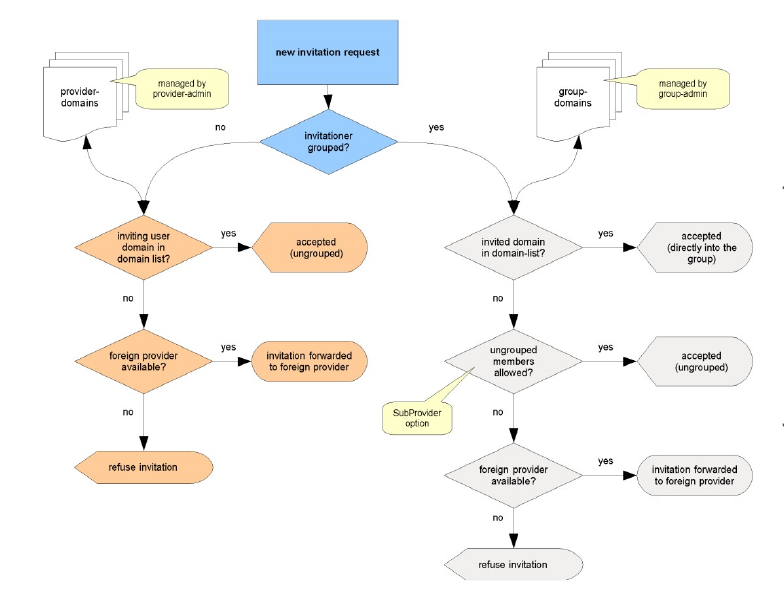
Allow inviting users to
This option allows you to define a list of domains. If the list is empty, all ungrouped users are allowed to invite new people without restrictions. If this list is filled, only users with a main-mailaddress inside of this list are allowed to invite other users to this provider. If a foreign provider is defined, users that are not listed in this domain-list will be able to invite, but their invitation will get forwarded to the foreign regify provider. You might need to refresh the page to update the dialogue.
| Changes to this domain-list are saved directly, no matter if you save the other subprovider settings later or not. |
Ungrouped members are undesired in this provider
If you check this option, the provider try’s to prevent of having ungrouped users. If a foreign provider is defined, invitations that will result in an ungrouped member will get redirected to this foreign provider. If you do not check this option, invitations that will result in an ungrouped member will remain on this provider (even if a foreign provider is defined). This option affects only invitations that are generated by grouped members!
Contact tab
Please enter all your contact data. Please do not leave empty fields here.
Provider homepage URL
Help people to find your generic homepage. Ensure to enter a complete URL including protocol like https://myCompanySite.com.
Standard telephone dialling code
Select the most likely telephone pre dial code for your future users. This is the pre-selection for new registrations, invitations etc. Pre-filling makes life more easy for your users. Please note that the name (eg Italy) is not important. It saves just the pre-dial like "+39".
Administrator e-mail address
This address is used by the portal to send technical notifications (eg regibox storage is exceeded by a user). Enter the address of the technician responsible for the regify appliance.
Mail robot address
This is an important setting because it defines the used email address for any provider emails sent to users and administrators. Please make sure to match your SPF and reverse DNS settings here.
Support address
This address is displayed to end users for technical support contact.
Phone for technical support
This number is displayed to end users for technical support contact. You should not leave this blank as some dialogs will look bad then.
Phone for billing support
This number is displayed to end users for support while doing orders. You should not leave this blank as some dialogs will look bad then.
External invitation tab
You can use this option to allow users not only to invite new users to the same (your) regify provider. Invitations can become forwarded to another regify provider instead. For this option, you need to set the URL and Parameters that will get called on the remote regify provider to start invitation. The parameters for the URL are defined in the regify provider-sdk. In case of questions, please contact support@regify.com for assistance.
If you enter the calling string, the regify provider will substitute several placeholders with invitation data. Therefore, you are able to control the behaviour of the external invitation.
Replaced placeholders are:
| Values | Meaning |
|---|---|
Values for the invited user |
|
[m] or [mb] |
<mailaddress> or <mailaddress base64> |
[p] or [pb] |
<prefix> or <prefix base64> |
[fn] or [fnb] |
<first name> or <first name base64> |
[ln] or [lnb] |
<last name> or <last name base64> |
[un] or [unb] |
<username> or <username base64> |
[o] or [ob] |
<organisation> or <organisation base64> |
[mn] or [mnb] |
<mobile number> or <mobile number base64> |
Values of the inviting user |
|
[in] or [inb] |
<invitationer full name> or <invitationer full name base64> |
[io] or [iob] |
<invitationer organisation name> or <invitationer organisation name base64> |
[uid] |
<invitationer UserID> in sending regify provider |
[mad] or [madb] |
<mailaddress> or <mailaddress base64> of invitationer |
[ia] |
<invitationer auth-level> |
Other parameters |
|
[c] |
selected language code |
[q] or [qb] |
<personal message> or qb=<personal message base64> |
It is highly recommended to use the base64 encoded placeholders versions to avoid problems in transmission (if option offers a base64 encoding). In case of any trouble, please carefully check the logfiles of both affected systems (regify providers).
Example values:
Provider-url for handover:
The complete URL like https://portal.regify.com.
Userdata for handover:
Enter user email and password, divided by colon. This user needs INVITING-USER permissions checked in ). Example: SDKUser:MyPassword
ProviderCall:
A call providing the needed data. Usually, you are fine with this one:
f=userinvite&mb=[mb]&pb=[pb]&fnb=[fnb]&lnb=[lnb]&ob=[ob]&c=[c]&qb=[qb]&i=test&inb=[inb]&iob=[iob]&ia=[ia]
Shop tab
Please define your shop options here.
Send order messages from shop by e-mail to
All orders will send an email to this email address.
Shopsystem and parameters
Please have alook at the separate billing documentation.
Prices for internal shop system
Please have alook at the separate billing documentation.
Other tab
Max. authentication level
You can define the maximum authentication level for the subprovider. This option is not available for the main provider (subprovider ID 1). The maximum level for subproviders is defined by regify after certification. If you are interested in certification for authentication levels above 3, please contact support@regify.com.
Enable sharing feature (needs regibox)
Enable the regibox sharing feature by ticking this checkbox. Please note that regibox must be enabled in general at the appliance. Otherwise this checkbox is greyed out. Also, the user must be an activated regibox user for this to work for him.
New users become regibox users immediately
If you enable this, all new user accounts will get regibox activated by default. No matter if created by self registering, invitation or SDK.
Monthly report explanation
The regify-provider software generates a monthly report. It will get generated exactly on the first day of the month, usually some minutes after midnight.
This report is encrypted and sent to regify every month. It is used for billing and for automated invoicing. It does not contain any names or email addresses of your customers. It is just absolute numbers.
You can get an unencrypted copy of the report in readable form by setting REPORTCOPYADDRESS in Portal configuration file options. The report contains a detailed description of its values and is self explaining. If you have questions about the values, please feel free to contact our support for clarification.
But do not use this report for invoicing your customers. The Data Export function in your provider web administration offers you to export billing data in much more detail and contains the needed values for invoicing.
Design options
If you like to change the optical appearance of the regify provider software, please refer to the document „customizing regify provider appearance“.
Monitoring options
Generic
The regify provider software appliance offers built-in diagnostics for easy monitoring.
You can reach the tool by calling the following URL in intervals:
https://<Serverurl>/monitoring.php
This method checks free system space, clearing-availability, database-availability and database-replication in one single call.
Possible results of monitoring.php:
OK → Everything is fine
WARNING: {msg} → The provider still runs, but some problems are detected (see message)
ERROR: {msg} → The provider is not running (see message for reason)
Nagios
The regify provider software appliance repositories also contain the Nagios client tools. You can call them if you like. Please contact support@regify.com for help on enabling the Nagios client. Please note that we can not give you support or training on how to use and configure Nagios. See https://wiki.regify.com/index.php?title=Nagios_Information for more technical information.
The following monitoring-sources are recommended:
-
The lockfile /var/lib/regify-provider/ClearingLock.dat
If this lockfile exists, at least one clearing connection is not ok. It is automatically removed if the provider was able to re-connect again (every 5 minutes). -
The lockfile /var/lib/regify-provider/MaintenanceLock.dat
If this lockfile exists, the provider has gone to maintenance-mode (eg missing all clearing connections). It is automatically removed if the provider was able to fix his problems by himself. -
The MySQL logfile at /var/log/mysqld.log
There is a problem if it contains entries with[error].
Zabbix
There is also Zabbix monitoring possible. Not by installing the client, but by SSH login. See https://wiki.regify.com/index.php?title=SSH_Monitoring_with_Zabbix for more information.
Updating provider software
To update the regify provider, you need to enter the appliance administration menu (SSH) and use the check for updates option.
This is descibed in detail in the regify provider appliance manual.
Portal configuration file options
You can find this option in main dialog of your web administration. You need to be the main provider administrator to see this option. Please click the Edit global configuration file button to edit the global settings file.
| Please do not edit this file manually on the appliance file system, because otherwise synchronisation to other systems (redundancy) will not work! Use the editor in (sub)provider management only. |
The configuration file contains all settings that differ from the regify defaults.
| The values in this file affecting main provider and all subproviders. These options are not individual to subproviders. |
Configuration file file syntax
Many settings are simply set using a TRUE or FALSE value. TRUE is meant for „YES“ or „ON“ and FALSE for „NO“ or „OFF“.
Here is an example (the highlight colors may differ):
<?php
// comment
define('MAINTAINMODE', FALSE);
?>
Here you can set TRUE to set the maintain-mode of the portal or FALSE to allow normal operation. Some other functions need strings (textual information) or numbers. Strings must be covered by single quotes or double quotes. Numerical values are to be entered directly.
<?php
define('SOMEFILE', "/tmp/ClearingLock.dat");

define('SOMEVALUE', 1234);
?>
In the first case, a string value is defined for SOMEFILE. Strings need to get covered using quotes or double quotes. In the second example, a numeric value is given to SOMEVALUE. Numeric values and TRUE/FALSE are not covered using quotation-marks.
Some configuration options need to define an array with multiple values. Please refer to the PHP documentation to learn about PHP array settings or study the examples below.
Configuration options
You do not need to set all of the available options. Most of them can remain undefined. If they are undefined, they will use the default values.
You can find these option using the Manage (sub)providers option in your web administration. Please click the Edit global configuration file button to edit this file.
| Please contact regify support at support@regify.com if you like to change something and you are not sure about how to change or what the option does. |
| Provider information | |
|---|---|
MAINTAINMODE |
If set TRUE, wether the portal or the regify client software is able to work. Every customer will get a maintenance information. Set this, if an error occurs or you are planning some maintenance that might break the portal for a while. Default: FALSE |
BOXMAINTAINMODE |
If set TRUE, all access to regibox data is blocked (eg regibox manager) while other regify products and the portal are still working. This is useful for stopping regibox usage while working on the connected SMB share for regibox data. Default: FALSE |
| regify specific definitions | |
|---|---|
HTTPPROXY |
Here you may define a proxy for external url calls. Leave empty ("") if your server has direct connection to the internet. Normally this value is automatically updated if you set the proxy in SSH appliance menu and you should not change it manually. Format: "ProxyNameOrIP:Port" Default: "" |
USEREXPIREDAYS |
How many days will a regify subscription or invitation be available, if the e-mailed user does not activate his account by clicking the e-mail link? Default: 6 |
ACTIVEAFTERSIGNIN |
Days of regimail professional membership the user will get after he successfully created an account (use -1 to start without regimail professional membership). Default: 30 |
NOTIFYEXPIRATIONMAIL |
Define, on which days before regimail professional expiration the user should get an expiration reminder e-mail. Separate by comma. Leave empty ("") to disable expiration messages. Default: "7,3" (7 and 3 days before expiration) |
REGIBILL_DEFAULT_SUBJECT |
If a regibill standard transaction is started, this text is set as subject in the transaction history. Default: "regibill standard" |
REGIBILL_DEFAULT_REMINDER |
The duration of the reminder period of regibill transactions. Important: regibill standard does never trigger a receipt information. Upon this, this value is only for database optimisation (how long is the key held in active table). Default: 7 |
MAXHITSPERPAGE |
The number of hits for each page on multiple-page results (list of sent regimails, regibills, regipays etc). Default: 12 |
COMMON_COUNTRIES |
List of IOC codes of common countries of your customers (divided by blank). This allows you to sort some common countries to the top of country lists. Default: "GER LUX FRA GBR SUI" Also see list of International IOC country codes in the addendum of this document. |
List of IOC codes of countries allowed to be used for SMS (used while registration or invitation). Recipient countries are limited to prevent text messages to high priced countries outside of the provider target region. If you want to add countries, please check with regify support! The regify SMS gateway is filtering all countries except for the defaults. Tell us if you need additional countries for your system so we can add them to the SMS gateway as well. Default: "AUT BEL SUI CZE GER DEN ESP FRA GBR CRO IRL ITA LUX NED POL POR SLO" (western EU + UK) |
|
ALLOWED_OBLIG_ATTACH |
List of file extensions allowed for upload as obligatory attachments. The entries have to be separated by semicolon. Default: "pdf;docx;doc;odt;txt;jpg;gif;png;pk7;p7m;p7s;crt;key" |
| Security, abuse protection and session management | |
|---|---|
SESSION_ACTIVITY_TIMEOUT |
This value defines, how many seconds a session will last on the portal. If a user is not calling a page after that time, the session is invalid (user is logged out). This applies also to SDK and client access (sdk.php and regify2.php). Default: 600 |
MAX_DOS_LOAD |
Defines, how many high-load processes of a given type are allowed at a time to avoid any unattainability of the server. Such processes are PDF generation for regibill validation reports or PDF generation of transaction history or GDPR reports. Those jobs can run a maximum of MAX_DOS_LOAD times at the same time (counting over all your subproviders)! If you run multiple and/or strong machines, you can increase to 20 or even 50. But 5 should do the trick for most. Default: 5 |
LOCK_AFTER_FAILED_ATTEMPTS |
If a user tried to login several times with wrong password, this function blocks any further attempt (even if password is correct). The user may try again after 10 minutes. This constant defines the treshold for failed logins. If you set this value to 0 (zero), the function is disabled (unlimited attempts, not recommended). Default: 10 |
MAX_REGISTRATIONS_HOUR_MAILSERVER |
Maximum allowed number of self registrations per hour with the same mailserver (checking MX records). Calculation across all sub-providers! Default: 4 |
MAX_REGISTRATIONS_HOUR_IP |
Maximum allowed number of self registrations per hour from the same IP address. Calculation across all sub-providers! If you are behind a proxy server which is not correctly setting HTTP header X-Forwarded-For with users IP address, you might need to disable this check by setting it to MAX_REGISTRATIONS_DAY. Default: 4 |
MAX_REGISTRATIONS_DAY |
Maximum allowed number of self registrations allowed per day for the whole system. Calculation across all sub-providers! Default: 30 |
CAPTCHA_SITE_KEY |
The TrustCaptcha site key. Setting this value to an empty string ("") disables all captchas. This is affecting all (sub)providers! WARNING: Disabling the captcha is a security risk! Do not disable captcha if you were not asked to do so by regify support staff. Default: No default value |
| regibox specific | |
|---|---|
MAXBOXSIZE |
The maximum disk space consumption a user is allowed to utilize using regibox. This is the default and applies to all users who did not get a dedicated limitation. The value is in GigaBytes. Default: 2 |
BOX_QUOTA_OVER |
If a user exceeds his regibox quota size by this percentage (100%+), the system administrator is getting an e-mail by the system. Please note that the provider does not stop accepting more files, even if the users maximum box size is reached. This value is the treshold for sending notifications to the system administrator naming the account which is over quota. Default: 20 (means warning if >= 120%) |
RGB_QUOTA_WARN |
If a regibox size exceeds this usage level, the regibox owner is getting an e-mail by the system. Default: 90 (means warning if >= 90%) |
| sharing specific | |
|---|---|
SHARE_MAX_SIZE_COMPLETE |
The maximum size a user is allowed to share in sum across all his shares in megabytes. Default: 250 |
| Authentication and security switches | |||
|---|---|---|---|
AUTHCOUNTRIES |
If authentication option is active, please select the IOC code(s) of the countries for which you provide the authentication service (divided using blank). Only users with their address location in one of these countries are getting the authentication options displayed. Default: "GER LUX" Also see list of International IOC country codes in the addendum of this document. |
||
UNLOCKCODETYPE |
Defines, how the identity-files unlock-codes will be generated (used by users to decrypt identity-files). The following char flags define the used charsets: "U"=Uppercase Alphanumeric Chars Combinations of these values are allowed. Default: "ULN" |
||
UNLOCKCODELENGTH |
Defines the length of the unlock code used to unlock identity-files on local machines. Default: 16 |
||
INVITATIONAUTHTOLEVEL |
If you set a value from 1 to 5, an invited user will get authenticated by default using this authentication level. This requires, however, that the inviting user is already authenticated by the same or a higher level. Set to 0 to prevent any automatic authentication. Default: 0 |
||
INVITATIONAUTHONLYSDK |
This option applies only if the INVITATIONAUTHTOLEVEL option was set. Setting this option to TRUE prevents authentication of users that are not being initiated by the provider-SDK. If set to FALSE, the INVITATIONAUTHTOLEVEL option affects all invitations. Default: TRUE |
||
|
AUTHTRANSMITURL |
This URL is used to call the SMS gateway. If you do not set this or set it empty string, the regify gateway is used. Please note that using the regify SMS gateway implies cost (regify SMS gateway information). The following placeholders allow you to complete the url (they are already url encoded): [r] = unlockreturninformation (mobile number) Default: "" Example URL to send an Unlock-Code SMS using sms4.de: |
||
In case you use AUTHTRANSMITURL, please enter the result that indicates a successful sending as a Regular Expression (for example: /200/ if you need to get "200" or /<status>0<\/status>/i if you need to get a result containing "<status>0</status>"). Please note escaping of slashes inside of the RegEx! Do not set if you want to use the regify SMS gateway. |
|||
This option defines how the mobile number [r] country code is handled for replacement in your own AUTHTRANSMITURL. Do not set if you want to use the regify SMS gateway. Mode 0 = format number like 49771… Default: 1 |
|||
function AuthTransNumberConvert($O) {}
|
This optional function allows you to check or convert the [r] replacement placeholder before inserting. This overwrites the AUTHTRANSMITNUMBERMODE option. This may get used to ensure a given pre-code or to remove unwanted chars etc. This function needs to return the correct value. If it returns "" (empty string), the sending is canceled. If this function is not existing, this feature is simply ignored and the value of AUTHTRANSMITNUMBERMODE is used. Do not set if you want to use the regify SMS gateway. |
||
AUTHOPTIONS |
This value allows you to set the maximum authentication level of this provider instance (and all subproviders). You can get the needed codes only from regify. For more information contact support@regify.com. |
||
USERPASSWORDLENGTH |
Length of normal user-passwords (auto generated upon invitation or self register). Default: 8 |
||
EMAIL_CODE_LENGTH |
The length of the verification code sent by email to the user. This code is used for email/account activation and password reset links. Default: 32 |
||
The length of the numeric verification code sent by SMS. Used for account activation and password reset. Default: 6 |
|||
PENTEST |
If TRUE, the system disables all security mechanisms. There will be no Captcha validation, no delay on invalid logins (speed up testing), no SMS sending enabled (prevent cost for text messages), no CSRF token check (always valid) and no cookie session-id is changing. It will also not count and stop invalid logins.
Default: FALSE |
||
BLACKLIST_4NN |
If FALSE, will disable blacklisting attackers that cause lots of 4nn errors probing for vulnerabilities. Default: TRUE |
||
USE_X_FORWARDED_FOR |
Whether to trust the X-Forwarded-For header to get the caller’s IP. Leave this disabled unless you are behind a load balancer that has been configured to properly sanitize and set this.
Default: FALSE |
||
| Shopsystem definitions | |
|---|---|
SHOPCURRENCY |
Currency used in this provider. It is used for the shop-system. Default: "EUR" |
ORDER_INVALID_AFTER |
If an order is not marked as "payed" after that number of days, it is automatically marked as "cancelled". Default: 21 |
| Mailing options | |||
|---|---|---|---|
REPORTCOPYADDRESS |
Enter an email address, if you like to receive a copy of the monthly report that is sent to regify. Please keep in mind, that the content is not encrypted. Leave empty to receive no copy. Default: ""
|
||
Restoring backups
Backups are created automatically by the backup option in your appliance menu (SSH). Please refer to the appliance manual to find out more about the backup option.
In order to restore such a backup, the following prerequisites must be given:
-
The target appliance must be set up with clearing ID and clearing password.
-
The appliance wizard must be run (because it needs your clearing access data configured in order to be able to decrypt the backup).
-
You need the backup file to restore.
| If your system is replicated, we strongly recommend to first stop replication. Now restore one system in the beginning and later set up the replication again based on the restored system. |
The backup restore can get startet in two ways:
-
In the web administration gui . Simply upload the backup file and restore begins. Unfortunately, this may fail for very big backups. If this happens, use the next option.
-
By using SSH access.
-
First copy the backup-file to the machine (eg with rsync or scp).
-
SSH-Login as root and enter:
$ /usr/libexec/regify-provider-app/restore {backup-file}
-
Technical support information
Online resources
FAQ’s available in English, French and German under
Extensive wiki available in English at
Installing third party software
We do not allow you to activate other rpm repositories except the regify ones. You are not allowed to install other software on the appliance. The only exception is software needed for your virtualization environment. By doing this, you accept the following licence agreement for installing such software:
Installation of driver software and programs in the context of virtualisation technologies
regify also provides support for customers who use the regify provider software appliance or the regigate software appliance on virtual servers (e.g. on VMWare, Virtualbox or Microsoft Hyper-V) according to the maintenance agreement and in line with commercial practice. As virtualisation technologies emulate functions of physical computers, regify assumes that regify products work in virtual environments as they do in physical environments. Therefore, provisioning of the regify support is based on the assumption that a potential problem or error that is observed in a virtual environment can be replicated in a physical one.
A regify customer may install other software on a regify appliance if such software is critical for the operation of the virtual environment. The existing maintenance agreement between customer and regify also applies for such virtual setups. However, problems or errors that only occur on virtual systems or in combination with software that was installed by the customer are not covered by the maintenance agreement. In such cases, regify reserves the right to charge the customer for time and effort. Moreover, regify does not assume any liability for system failure or loss of data.
Invitation-chart
International IOC country codes
AFG Afghanistan ALB Albania ALG Algeria ASA American Samoa AND Andorre ANG Angola ANT Antigua and Barbuda ARG Argentina ARM Armenia ARU Aruba AUS Australia AUT Austria AZE Azerbaijan BAH Bahamas BRN Bahrain BAN Bangladesh BAR Barbade BLR Belarus BEL Belgium BIZ Belize BEN Benin BER Bermuda BHU Bhutan BOL Bolivia BIH Bosnia and Herzegovina BOT Botswana BRA Brazil IVB British Virgin Islands BRU Brunei BUL Bulgaria BUR Burkina Faso BDI Burundi CAM Cambodia CMR Cameroon CAN Canada CPV Cape Verde CAY Cayman Islands CAF Central African Republic CHA Chad CHI Chile CHN China COL Colombia COM Comoros CGO Congo COD Congo (Dem. Rep.) COK Cook Islands CRC Costa Rica MNE Crna Gora CROC roatia CUB Cuba CYP Cyprus CZE Czech Republic CIV Côte D’Ivoire DEN Denmark DJI Djibouti DMA Dominica DOM Dominican Republic TLS East Timor ECU Ecuador EGY Egypt ESA El Salvador GEQ Equatorial Guinea ERI Eritrea EST Estonia ETH Ethiopia FRO Faroe Islands FIJ Fiji FIN Finland FRA France |
GAB Gabon GAM Gambia GEO Georgia GER Germany GHA Ghana GRE Greece GRN Grenada GUM Guam GUA Guatemala GUI Guinea GBS Guinea-Bissau GUY Guyana HAI Haiti HON Honduras HKG Hong Kong HUN Hungary ISL Iceland IND India INA Indonesia IRI Iran IRQ Iraq IRL Ireland ISR Israel ITA Italy JAM Jamaica JPN Japan JOR Jordan KAZ Kazakhstan KEN Kenya KIR Kiribati PRK Korea (North) KOR Korea (South) KUW Kuwait KGZ Kyrgyzstan LAO Laos LAT Latvia LIB Lebanon LES Lesotho LBR Liberia LBA Libya LIE Liechtenstein LTU Lithuania LUX Luxembourg MKD Macedonia MAD Madagascar MAW Malawi MAS Malaysia MDV Maldives MLI Mali MLT Malta MHL Marshall Islands MTN Mauritania MRI Mauritius MEX Mexico FSM Micronesia MDA Moldova MON Monaco MGL Mongolia MAR Morocco MOZ Mozambique MYA Myanmar NAM Namibia NRU Nauru NEP Nepal NED Netherlands AHO Netherlands Antilles NZL New Zealand NCA Nicaragua NIG Niger |
NGR Nigeria NOR Norway OMA Oman PAK Pakistan PLW Palau PLE Palestine PAN Panama PNG Papua New Guinea PAR Paraguay PER Peru PHI Philippines POL Poland POR Portugal PUR Puerto Rico QAT Qatar ROU Romania RUS Russia RWA Rwanda SKN Saint Kitts and Nevis LCA Saint Lucia VIN Saint Vincent and the SAM Samoa SMR San Marino KSA Saudi Arabia SEN Senegal SRB Serbia SEY Seychelles SLE Sierra Leone SIN Singapore SVK Slovakia SLO Slovenia SOL Solomon Islands SOM Somalia RSA South Africa ESP Spain SRI Sri Lanka SUD Sudan SUR Suriname SWZ Swaziland SWE Sweden SUI Switzerland SYR Syria STP São Tomé and Príncipe TPE Taiwan TJK Tajikistan TAN Tanzania THA Thailand TOG Togo TGA Tonga TRI Trinidad and Tobago TUN Tunisia TUR Turkey TKM Turkmenistan TUV Tuvalu UGA Uganda UKR Ukraine UAE United Arab Emirates GBR United Kingdom USA United States of America URU Uruguay UZB Uzbekistan VAN Vanuatu VEN Venezuela VIE Vietnam ISV Virgin Islands of the US YEM Yemen ZAM Zambia ZIM Zimbabwe |
Howto
This section contains short tips for things that may arise.
SMS Gateway
You control SMS usage via Switch 3 on Function Switches.
There are the following pertinent settings to may be adjusted at Portal configuration file options.
You can find more information about the SMS gateway at the regify homepage.
Setup a Subprovider
After installing the subprovider in the appliance menu for all systems, you can continue with the setup by using the web administration.
-
Login to the web administration of the main provider as a master admin and select Manage (sub)providers. The new subprovider should appear in the List of subproviders.
-
Selecting the new subprovider in the List of subproviders allows you to edit the settings in the lower area Edit selected (sub)provider settings.
-
Complete the settings of the new subprovider and finish it by clicking Save changes.
Admin-Account and Customization
Once the subprovider has been successfully created, you need an administrator user for this subprovider to edit and do customization:
-
New admin signs up for a regify account on the new subprovider.
-
Activate from the email and note your password.
-
Login to main provider administration with the existing main provider admin account.
-
Go to Manage (sub)providers.
-
Select the subprovider in the list to add the admin user to.
-
Click on Manage portal administration roles in the Common tab below.
-
Select the new user in User ID. You can use the … button to search the User ID.
-
Grant it the Role: Subprovider Admin.
-
Log-out of the administration area.
-
The new admin now can log-in to https://subprovider-domain/admin
Delete a Subprovider
To delete a subprovider, it must be emptied of all data. Thus, not a single user will be assigned to this subprovider anymore. The first step is usually to export/import all users to some other system or move them to another subprovider.
Finally, this leaves only admin accounts. Please follow these steps to remove the subprovider’s admin users:
-
You first have to enter the main provider administration portal in the "master" admin role and remove any admin roles for the affected subprovider except the one for the last and final administrator of the subprovider.
-
Then log-in with this last admin user name to the subprovider administration screen.
-
Enter Manage user and do a simple search. Only the single admin should come up now (you). You cannot delete this account because it is still an admin!
-
Select .
-
On the bottom of the dialogue box, please switch the Subprovider to the main provider domain and click on Save changes.
-
Close the window and go back to main page and log out.
-
Enter the main provider administration portal using a master admin role account and remove the admin role for the affected subprovider. The Master role of the main provider admin will not be affected and be retained. Finally, the subprovider can be deleted by the SSH appliance menu.
ToDo’s
When a new admin logs into the web administration, they will see ToDos. Please follow these ToDos to make sure that everything is set up correctly. Do not click on Done unless all tasks are really done.
Try sending emails (eg notifications) from the new subprovider system.
Copy the email address from https://www.mail-tester.com/ and send a regify account invitation to this address.
Then go back to https://www.mail-tester.com/ and check your score.
The maximum for a regify provider is 9 because DKIM signatures are not used.
If it is less 9, please have a closer look on their reporting.