regify regigate Upgrade Manual
Read Me
These are the upgrade instructions for the regify regigate appliance to the next major version 6.0.
It is normally enough to perform upgrades simply by going to Check for updates and following the instructions there. Since this is a major upgrade, we cannot exclude the possibility of unforeseen circumstances at each customer installation. Therefore, we recommend extra precautions in this instance.
-
Try to inhibit mailflow to the regify regigate appliance
-
If HA mode is enabled, disable it before upgrading
-
Follow the Normal Steps process
-
The whole update should only take about 5 minutes unless you have slow disks.
-
If you have such an installation or simply want more progress information, you may also follow the Verbose Steps instead of the Normal Steps
-
Items suffixed with … like
Decompressing system image…take a little longer -
If it hangs at one of these steps too long, then this is a sign of a problem. Then follow these steps:
-
Revert your snapshot
-
Follow the Verbose Steps process.
-
Normal Steps
|
It is recommended to have console access to the virtual machine to make snapshots and monitor the machine reboot after the upgrade! This is not strictly needed, but only the local console provides feedback about the second part of the upgrade progress. But you can simply wait and periodically try to access the Appliance Menu . |
An upgrade should proceed in the following manner:
-
Make a snapshot of the virtual machine that your regify appliance runs on.
-
Log into the Appliance Menu and press Check for updates.
-
Unless you already were at version
5.3.5, do this a second time get the actual major update. -
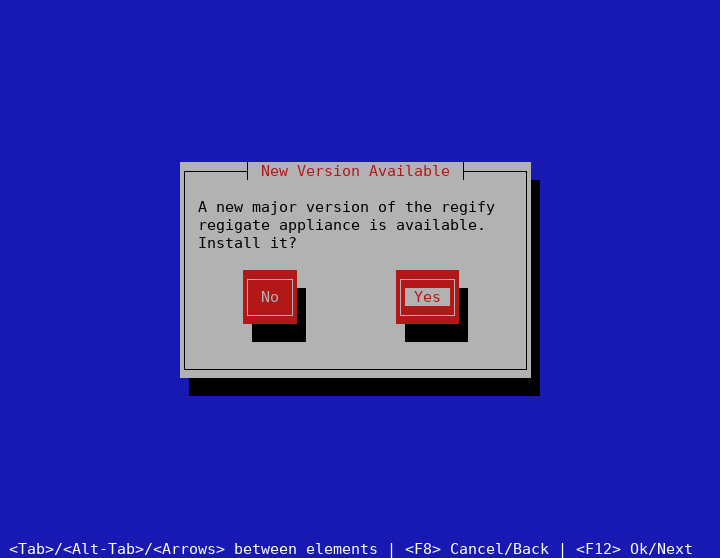
Select Yes in the New Version Available dialog.
-
Let the upgrade run. Part one will end like this (colors depend on your system):
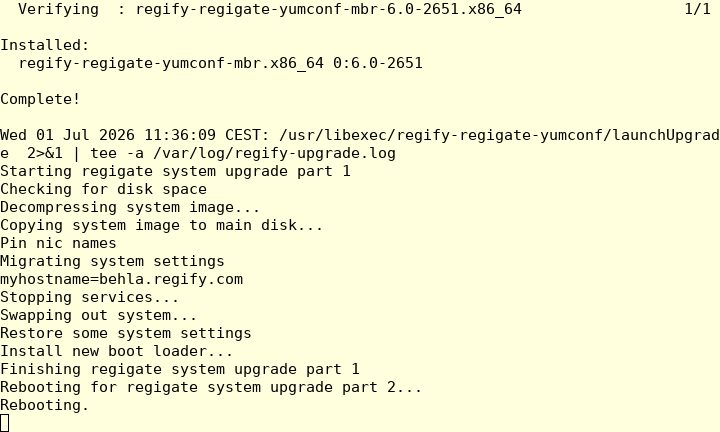
Part 1 of the upgrade has finished now.
-
Now continue with Finish up.
Verbose Steps
This is only recommended for advanced users or if the normal upgrade encountered a problem and the snapshot has been reverted. The idea is to collect information for regify technical staff to detect and rectify the problem.
An upgrade should proceed in the following manner:
-
Unless the system is still there from the Normal Steps procedure, make a snapshot of the virtual machine that your regify appliance runs on.
-
Make sure you’re allowed to log in as root by ensuring Allow root login in SSH Settings is checked.
-
Log in as root and run the following:
RFDBG=1 regigateConfig-
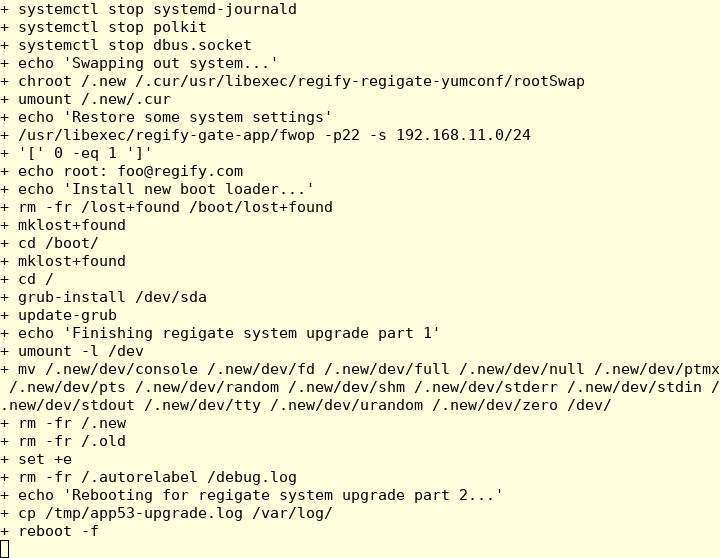
When it runs all the way through, it looks like this:
-
If your upgrade looks like the image above, continue with Finish up.
-
If it failed, then copy everything starting from the last
Installed:
  regify-regigate-yumconf-mbr.x86_64 0:6.0-2649
down to the end of the output and send it to support@regify.com.
-
Then abort the upgrade operation:
-
Revert your snapshot
-
Delete the reverted snapshot
-
Finish up
This is the part that happens after the system has rebooted.
-
If you have a local console to your VM, you will be able to see part 2 of the upgrade running:
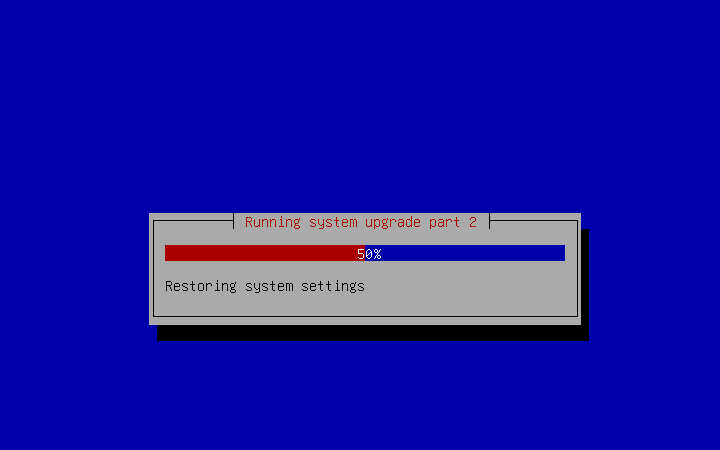
Please wait until the process is finished!
-
Re-login to the appliance using SSH (PuTTY).
-
Log into the Appliance Menu. and press Check for updates.
-
Run any patch updates that are offered, but not major version updates.
-
The regigate appliance should now be operational again.
| It is recommended to delete the snapshot again to prevent inadvertent reversion and confusion. |